Android
How to hide pictures on Samsung: 5 ways and what each one hides
Five ways to hide photos on a Galaxy phone, from a hidden Gallery album to Secure Folder, with exact One UI 8 steps and who can still see them afterwards.
By the Calculator Locker team10 min read
A Galaxy phone gives you more ways to hide photos than most phones do, and they range from “out of sight” to “behind a separate lock.” A hidden Gallery album keeps a folder out of the grid. Secure Folder moves photos into an encrypted space with its own PIN. Which one you want depends on who you’re hiding them from.
Below are the exact steps for each method, written for One UI 8 and 8.5 on Galaxy S, A and Z phones alike, with what each one hides and, just as important, what it doesn’t.
Short answer
Check your One UI version first
Open Settings › About phone › Software information and look at One UI version. The steps here follow Samsung’s current support pages, which describe One UI 8 and 8.5 (Android 16). The steps are the same across Galaxy S, A and Z models, from an A16 to an S25 or a Z Flip7, though Samsung notes that menu names can vary a little by model, carrier and software version.
- One UI 7: there’s no Private album, and Secure Folder still has the “Each time I leave an app” auto-lock but no Lock and exit button.
- One UI 8.5: adds Private album in Gallery on select models.
- One UI 9 (Android 17): has started reaching recent Galaxy phones. We couldn’t find Samsung documentation of changes to these features in it, so if a menu has moved, search Settings or Gallery for the feature name.
Hide an album in Samsung Gallery
This is the quickest option and the weakest. It hides whole albums, not single photos.
- Open Gallery and tap Albums.
- If you see View all, tap it.
- Tap More options (⋮), then Hide albums.
- Switch on each album you want hidden. To bring one back, return here and switch it off.
What it hides you from: the album drops out of Gallery’s album list, and its photos stop showing in the main Pictures view. Someone flicking through Gallery won’t stumble on them.
What it doesn’t: there’s no lock. Anyone holding your unlocked phone can open the same menu and switch the album back on in two taps, and Samsung’s own troubleshooting page points people to exactly that menu when photos show up in My Files but not in Gallery. The photos aren’t moved or encrypted; they stay in their folder, where My Files still shows them. Use it for clutter like screenshots and receipts, not secrets.
Use Private album (One UI 8.5)
Private album is a locked album inside Gallery. It showed up in early One UI 8 test builds, which is why it’s often called a One UI 8 feature, but Samsung’s support page lists it for select Galaxy devices on One UI 8.5. If your Gallery menu has no Private album entry, your phone doesn’t have it.
Set it up
- Open Gallery and tap Menu at the bottom right.
- Tap Private album and follow the prompts. If the phone has no screen lock yet, it sends you to set one.
- Pick a notification style when asked, then tap Done.
Move photos in
- In Gallery, select the photos or videos.
- Tap More (⋮) › Move to private album, then Move.
To open it later, go to Gallery › Menu › Private album and unlock. Inside you can share items, move them back out or delete them. Samsung blocks screenshots inside the album.
What it hides you from: the photos leave your normal Gallery views, and someone scrolling your pictures won’t see them.
What it doesn’t: Samsung says it unlocks with your fingerprint or your phone’s screen lock. Anyone who knows your phone PIN, or has a fingerprint enrolled on it, can open it. Samsung’s page also doesn’t say whether Private album items are backed up, sync to the cloud or move with Smart Switch, so don’t let it hold your only copy of anything that matters.
Move photos into Secure Folder
Secure Folder is the strongest built-in option on a Galaxy: an encrypted space protected by Samsung Knox, with its own lock, its own Gallery and its own copies of apps. Samsung notes that some models don’t support it; if it isn’t in the menu below, yours is one of them.
Set it up
- Go to Settings › Security and privacy › More security settings › Secure Folder.
- Sign in to your Samsung account (it’s required) and wait for setup to finish.
- Choose a lock type: pattern, PIN or password. Make it different from your phone PIN, or there’s little point.
- A Secure Folder icon appears on your Home and Apps screens.
Move photos in from Gallery
- In Gallery, touch and hold a photo, then tap any others you want.
- Tap More options (⋮) › Move to Secure Folder.
- Unlock Secure Folder when asked.
The photos now live in Secure Folder’s own Gallery and are gone from the main one. To bring them back, open Secure Folder › Gallery, select them and tap More options › Move out of Secure Folder.
You can also work from the other side: open Secure Folder, tap More options › Add files, pick Images or Videos, choose your photos and tap Done. You’ll be asked whether to copy or move them. Copy leaves the original sitting in your main Gallery, which defeats the point for most people, so choose Move.
Hide the Secure Folder icon
- Go to Settings › Security and privacy › More security settings › Secure Folder, turn off Add Secure Folder to Apps screen and confirm with Hide.
- Or swipe down with two fingers and tap the Secure Folder tile in Quick Settings. If it isn’t there, add it with the pencil icon. Tap it again to bring the icon back.
- To disguise it rather than hide it, open Secure Folder, tap More options › Customize, change the name, colour or icon and tap Apply.
Hidden or not, Secure Folder still appears in Settings, and the Quick Settings tile is a hint to anyone who knows what it is. Fingerprint unlock is optional; every fingerprint enrolled on the phone will open it, so leave it off if anyone else’s finger is registered.
The One UI 8 backup change
Samsung now says data backup is no longer available for Secure Folder, and restoring an old Secure Folder backup isn’t available on One UI 8 or later. In practice:
- New Galaxy phone: use Smart Switch. Open it on both phones, tap Receive on this phone on the new one and Send from this phone on the old one, connect by cable or wirelessly, tap Allow on the old phone, and select Secure Folder on the new one before you transfer. Open Secure Folder on the new phone to check everything arrived.
- Reset, or moving to another brand: a factory reset wipes Secure Folder, and so does clearing its app data. Move photos out first.
- Auto-lock: One UI 8 removed “Each time I leave an app”; the default is now “When screen turns off.” Use More options › Lock and exit to lock it on the spot.
- Forgotten PIN: tap Forgot PIN and enter your Samsung account password. That also means anyone with your Samsung account password could get in.
Use Google Photos Locked Folder
Google Photos runs on any Galaxy, and its Locked Folder works the same as on a Pixel.
- Open Google Photos and go to Collections › Locked › Set up Locked Folder. Unlock with your screen lock.
- To move photos in, select them and tap Add to › Move to Locked Folder › Move.
- Optional: tap your profile picture, then Photos settings › Backup › Back up Locked Folder. Regular backup has to be on first.
What it hides you from: locked photos leave the Photos grid, search, memories and albums, and Google says other apps on the phone can’t see them, so they disappear from Samsung Gallery too. While they’re locked you can’t edit or share them, and Google notes that copies you edited or saved earlier stay where they were, so look for duplicates.
What it doesn’t: Google says there’s no separate PIN; it opens with your phone’s screen lock, so anyone who knows it gets in. With backup off, the photos are deleted if you uninstall Photos, clear its data, factory reset or lose the phone, and they aren’t carried over by cable or cloud phone-to-phone transfers. Our Locked Folder vs Secure Folder comparison goes deeper on which to pick.
Use a vault app with its own code
If the person you’re hiding photos from knows your phone PIN, Private album and Locked Folder won’t stop them, and Secure Folder is only as private as your Samsung account password. A vault app keeps photos behind a code that has nothing to do with either.
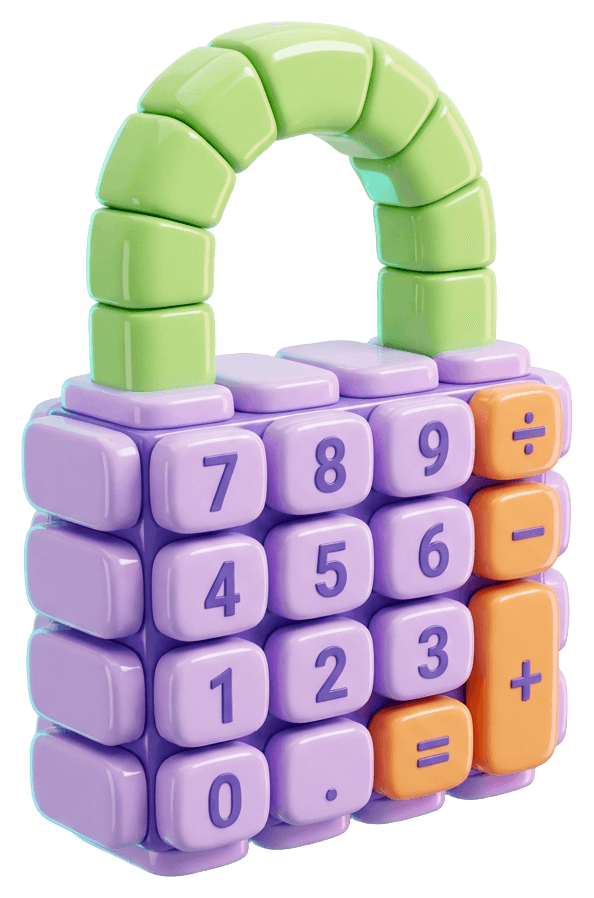
Calculator Locker, our own app, is one option. On a Galaxy it looks and works like a calculator, with several calculator-style icons to choose from, and on Android its name changes to match. Set a 4 to 8 digit code, type it and press = to open the vault, then tap Photos, import from your gallery and delete the originals in one tap. A second decoy code opens a separate vault you can show someone. Once you allow camera access, three wrong codes trigger a front-camera photo, and screenshots are blocked inside the vault. Everything is encrypted with AES-256 on the phone, with the key tied to the phone’s secure hardware. No account, no cloud, no ads, free.
The catch is that the vault exists only on that phone. It isn’t in Google’s phone backup, Smart Switch won’t carry it, and uninstalling the app deletes it. Before you reset or change phones, use the app’s encrypted backup export and keep the file somewhere safe; our guide to moving hidden photos to a new phone walks through it. And like any app, it’s listed in Settings › Apps, under its calculator name.
If you’re weighing up a different vault app, check how it encrypts, whether it wants an account, whether it can reset your code by email, and what happens to your photos when it’s uninstalled. Our checklist for whether vault apps are safe covers the rest.
What each method hides you from
| Method | Locked with | Who can still get in | Backup |
|---|---|---|---|
| Hidden Gallery album | Nothing | Anyone using Gallery; My Files still shows the files | Same as your other photos |
| Private album | Phone screen lock or fingerprint | Anyone who knows your phone PIN | Samsung doesn’t say |
| Secure Folder | Its own PIN, pattern or password | Anyone with your Samsung account password, or an enrolled fingerprint if that’s on | None; Smart Switch to a new Galaxy |
| Google Photos Locked Folder | Phone screen lock | Anyone who knows your phone PIN; your Google account, if backed up | Optional Google backup |
| Calculator Locker | Its own code, plus a decoy | Only someone who knows the code, or your recovery answer if you set one | Encrypted export file you keep |
For photos you just don’t want popping up when you show someone your holiday pictures, a hidden album or Private album is enough. For anything you’d be upset to see on someone else’s screen, use something with its own lock.
Before you rely on it: find the other copies
Hiding a photo on the phone doesn’t touch copies that already exist somewhere else. Check these:
- Google Photos backup. A photo Google Photos already backed up stays in your Google Photos library after you move the phone’s copy into Secure Folder or a vault. Delete it there too, or move it into Locked Folder instead.
- Samsung cloud sync. As above, synced photos can reappear in Gallery. Remove the cloud copy.
- Chats. A photo you sent or received in a messaging app is still in that chat, and often in the app’s own media folder.
- Trash. If Gallery’s Trash is on, originals you delete sit there for a while before they’re gone for good. Empty it from Gallery’s menu if that matters.
- Fingerprints. Check which fingerprints are enrolled in Settings before you turn on fingerprint unlock for anything above.
Questions people ask
How do I hide pictures in Samsung Gallery without an app?
Select the pictures in Gallery, tap More options (the three dots) and choose Move to Secure Folder, which locks them behind Secure Folder's own PIN. On One UI 8.5 you can choose Move to private album instead, which uses your phone's screen lock.
Can someone see a hidden album in Samsung Gallery?
Yes, if they look. Hide albums has no lock, so anyone who opens Gallery's More options menu and taps Hide albums can switch the album back on, and the files stay visible in My Files.
Is Private album in One UI 8?
Samsung's support page lists Private album as a One UI 8.5 feature on select Galaxy devices. It appeared in early One UI 8 test builds, which is why some articles call it a One UI 8 feature; if your Gallery menu has no Private album entry, your phone doesn't have it.
Is Private album the same as Secure Folder?
No. Private album is a locked album inside Gallery that opens with your phone's screen lock or fingerprint. Secure Folder is a separate encrypted space with its own PIN, pattern or password, its own Gallery and its own apps.
Does Secure Folder back up to Samsung Cloud?
Not any more. Samsung says data backup is no longer available for Secure Folder and that restoring old backups isn't available on One UI 8 or later; use Smart Switch to move Secure Folder to a new Galaxy phone.
Sources
- How do I hide and unhide albums in my Gallery? · Samsung Australia
- Pictures will not display in the Gallery app · Samsung US
- How to use Private album in the Gallery app · Samsung India
- What is the Secure Folder and how do I use it? · Samsung UK
- Use the Secure Folder on your Galaxy phone or tablet · Samsung US
- Cannot backup Secure folder on Galaxy phone or tablet · Samsung US
- Move content in and out of Secure Folder · Samsung Knox Documentation
- Hide sensitive photos & videos in Locked Folders · Google Photos Help
- Samsung One UI 8.5 Private album feature explained · SamMobile
Calculator Locker
A calculator that keeps your secrets.
Hide photos, videos, files and notes behind a working calculator. AES-256 on your phone, no account, no cloud, free.